
Written By: Dean Shali
Fact Checked By: Sabré Cook
Reviewed By: Tamara Warren
If your infotainment system is not tuned-up then it you can face slow apps, missing amazing new features or you have to deal with unresponsiveness nature of it.
Basically, it is not just about having big screen for music only: but it literally is the “CENTRAL HUB” that manages navigation, smartphone integration, voice commands, safety alerts and even keeps your updated about climate control in many modern vehicles as well.
But, over the period of time with the delayed software updates it becomes buggy, doesn’t run in smooth way and you need to improve the responsiveness of this system.
So, in this guide you’ll learn How to Update Car Infotainment System, that not only fixes bugs and glitches but it also gives new amazing features such as: updated maps, enhanced app compatibility and improved security protection as well.
Let’s, Understand About Your Infotainment System
1. Types of Infotainment Systems
Car infotainment systems come in various forms and understanding exactly which system is installed in your vehicle makes the updating process much easier and safer.
Factory-installed systems, often referred to as OEM systems, are manufactured by the carmaker and designed specifically for your vehicle; this means that updates typically originate from the official brand and undergo rigorous reliability testing.
Aftermarket systems are installed subsequently and are manufactured by third-party companies; therefore, updates for these systems depend on the device’s brand rather than the carmaker.
Many modern vehicles also support smartphone integration platforms, such as Android Auto and Apple CarPlay; these platforms allow you to run apps such as: maps, calling and music, directly on the car’s screen and updates for these systems are managed through your smartphone rather than the vehicle itself.
Some vehicles utilize entirely proprietary systems developed in-house by the manufacturer; these often feature built-in navigation, voice assistants and connected services and keeping them up-to-date often requires specific update methods such as: over-the-air downloads or USB installation.
Knowing which type of system you have helps you avoid installing incorrect software and prevents potential system malfunctions.
2. Features Affected by Updates
Software updates can enhance several key features of your infotainment system and these improvements directly impact your daily driving experience.
Navigation systems receive updated maps, improved route suggestions and more accurate traffic data, enabling you to reach your destination more quickly and safely.
Apps and media functions begin to operate more smoothly, thereby reducing issues such as lag, crashes, or screen freezes, problems that can be particularly frustrating while driving.
Connectivity features such as: Bluetooth, Wi-Fi and smartphone pairing, also see improvements, allowing you to connect your phone easily and without any sudden interruptions.
System speed and responsiveness often improve with updates, as manufacturers fix bugs and optimize performance; this means that touch inputs register more quickly and transitions between menus occur more seamlessly.
In some cases, updates also introduce new features, enhance the accuracy of voice commands and bolster system security to protect your personal data against potential risks.
3. Compatibility and System Requirements for Updates
Before updating your infotainment system, it is crucial to understand the compatibility requirements and basic system prerequisites to ensure that no glitches or interruptions occur during the installation process.
Every update is designed for specific models, software versions and hardware configurations; therefore, installing an incorrect file could lead to system malfunctions or cause the system to cease functioning entirely.
Most updates require a stable power supply; consequently, it is essential to keep the engine running throughout the entire update process or to ensure that the battery is fully charged.
Online updates necessitate a strong and stable internet connection, whereas USB updates require a properly formatted storage device and the download of the correct files from official sources.
Some systems also require sufficient internal storage space to install new software and older systems may have limitations regarding which updates they are capable of supporting.
By checking compatibility information, software versions and update instructions in advance, you can ensure a smooth and secure update process without the risk of data loss or any system-related issues.
How to Prepare for the Update
1. Check the Current Software Version
Before initiating any update, it is crucial to determine which software version your infotainment system is currently running on.
This information is typically found within the system settings, in sections labeled “About,” “System,” or “Software Information.”
Checking the version helps you verify whether an update is actually required and ensures that you download the specific file designed for your particular system.
Installing an incorrect version can lead to malfunctions, missing features, or even total system failure.
It also allows you to compare the changes introduced by the new update such as: improved performance, bug fixes, or new features, so that you can clearly understand the benefits of performing the update.
2. Back Up Your Personal Data
Infotainment systems often store valuable personal data, such as saved addresses, favorite radio stations, Bluetooth pairings and contact lists.
During an update, particularly a major one, there is always a slight risk that this data could be erased or reset.
Therefore, backing up your information is a prudent and safe precautionary measure.
Some systems allow you to save your settings to a USB drive, while in other cases, you may need to manually record essential information such as: frequently used navigation routes or paired devices, elsewhere.
Taking a few minutes now to secure your data can save you a significant amount of time and hassle later on.
3. Ensure the Vehicle is in ‘Park’ Mode and Properly Set
For the sake of safety and system stability, your vehicle must always be in ‘Park’ mode before you begin any update.
Most infotainment systems are designed to suspend updates while the vehicle is in motion, thereby preventing driver distraction and minimizing the risk of the update being interrupted.
Depending on the type of vehicle, you may need to keep the engine running or switch the ignition to ‘Accessory Mode’ to ensure that the system receives a continuous supply of power throughout the entire update process.
Turning off the vehicle during an update can interrupt the installation and corrupt the software, potentially causing the system to ‘freeze’ or cease functioning correctly.
4. Stable Power Source and Battery Precautions
A stable power supply is one of the most critical requirements for successfully completing an infotainment update.
The update process can take anywhere from a few minutes to over an hour; if power is lost during this time, the system’s internal software may become corrupted.
Keeping the engine running ensures a continuous supply of battery power, a particularly important measure for older vehicles, as their batteries may discharge more rapidly.
If you prefer not to keep the engine running, ensure that the battery is fully charged and in good condition.
In some instances, experts recommend using a battery charger during the update process to completely eliminate any risk of power loss.
5. Internet and Connectivity Requirements
Most modern infotainment updates require a reliable internet connection, particularly for ‘over-the-air’ updates.
A strong Wi-Fi connection is generally preferred, as it offers greater speed and stability compared to mobile data.
If Wi-Fi is unavailable, a mobile hotspot may be used; however, it must have a strong signal to ensure that the download process proceeds without interruption.
For systems that utilize USB-based updates, it is crucial that the correct files be downloaded directly from the official manufacturer’s website and placed on a properly formatted USB drive.
A poor connection or an incomplete file download can result in a failed update; therefore, ensuring a stable and secure connection is absolutely essential for a smooth and successful update experience.
Common Ways to Update the Car Infotainment System
1. Over-the-Air (OTA) Updates
Steps to Connect to Wi-Fi
Over-the-Air updates are one of the easiest and most common methods for updating a car’s infotainment system, although they rely on a stable internet connection.
To begin, you must connect your car to a Wi-Fi network via the infotainment settings; these settings are typically found within the “Network” or “Connectivity” sections.
Most systems allow you to select a nearby Wi-Fi network, much like you would on a smartphone, and then prompt you to enter the password to establish the connection.
A strong and stable connection is crucial, as infotainment updates can be quite large in size, sometimes amounting to several hundred megabytes or even more.
Using a home Wi-Fi network is often the best option, as it is generally faster and more reliable than mobile data, thereby helping to prevent interruptions during the download process.
How to Check for Available Updates
Once your system is connected to Wi-Fi, the next step is to check whether any new software updates are available.
This option is typically located within the system settings, under sections such as “Software Update,” “System Update,” or “About.”
Some vehicles are designed to automatically check for updates in the background, while others require you to search for them manually.
When an update is available, the system displays comprehensive details about it, including the version number, file size and a summary of the improvements or fixes included in that update.
Reviewing this information carefully helps you understand exactly what changes the update will bring such as: improved performance, bug fixes, enhanced connectivity, or the addition of new features.
Automatically Downloading and Installing Updates
Once it is confirmed that an update is available, the system allows you to download and install it directly, without the need for any external devices.
The download process typically begins first; depending on the size of the update and the speed of your internet connection, this process may take a few minutes to complete.
Once the download is finished, the system will either prompt you to begin the installation immediately, or you may choose to schedule it for a later time.
During the installation, the infotainment system may restart and certain functions may temporarily become unavailable.
It is crucial not to turn off the vehicle or disconnect the internet connection during this process, as doing so could lead to software errors.
Upon completion of the update, the system will restart with the new software version; this will often result in smoother performance, enhanced features and an overall more reliable user experience.
2. Via USB or SD Card
Visit the Manufacturer’s Website for the Latest Software
Updating your infotainment system using a USB drive or SD card is a highly reliable method, particularly for vehicles that do not support wireless updates.
The first and most crucial step is to visit the official website of your car’s manufacturer or the infotainment system brand and locate the software update section.
Here, you will typically need to enter specific details such as: your vehicle’s model, year, or VIN, to identify the update designed specifically for your system.
This step is vital because every infotainment system possesses a unique architecture and downloading the incorrect file can lead to malfunctions or even system failure.
The official website also provides instructions, release notes and information regarding the improvements included in the update such as: enhanced navigation data, bug fixes, or improved connectivity.
Download Update Files to a USB or SD Card
Once you have identified the correct update, you must download the associated files onto a USB drive or SD card that meets the system’s requirements.
In most vehicles, it is necessary to format the storage device using a specific file system such as: FAT32 or exFAT; if you use a format that the system does not support, the system may fail to recognize the update entirely.
It is essential to use a high-quality USB drive or SD card with sufficient storage capacity, as infotainment update files can be quite large.
After downloading, the files must be placed exactly as specified in the instructions, typically in the root directory, without making any changes to the folder names or file structure.
Any error during this step such as: an incomplete download or misplacement of files, as it can lead to a failed update.
Plug in and follow the on-screen instructions.
Once you have prepared the USB drive or SD card, insert it into the vehicle’s infotainment system while the vehicle is stationary and the engine is running.
The system will typically detect the update automatically and display a prompt asking if you wish to begin the installation.
Once you confirm, the system will begin reading the files and installing the updates one by one.
During this process, the screen may restart or go blank for a brief period; this is entirely normal.
It is crucial that you do not remove the USB drive or turn off the vehicle until the update is fully complete, as any interruption during this process could corrupt the system software and cause serious malfunctions.
Tips for Handling Files Safely
To ensure that the files install securely and without any issues, it is essential to handle the update files with care.
Always download files exclusively from official and trusted sources to avoid any malicious or corrupt software that could damage your system.
Verify that the download is complete and has not been interrupted, as incomplete files will not function correctly.
Avoid opening or modifying the files on your computer, as even the slightest alteration can render them unusable.
To prevent file corruption, it is also good practice to safely eject the USB drive from your computer before inserting it into your car.
By following these precautions, you minimize the risk of errors and ensure that the update for your infotainment system is completed successfully and without any complications.
3. On Dealership Updates
When is a visit to the dealership necessary?
In certain situations, updating your car’s infotainment system at home may not be feasible or safe; in such cases, visiting an authorized dealership is the best option.
This is typically required when an update is particularly complex, involves deep-level changes to the system, or interfaces with other control modules of the vehicle such as: safety systems or engine electronics.
If your infotainment screen stops functioning entirely, gets stuck in a restart loop, or displays a critical malfunction, visiting the dealership to have the update performed often becomes essential.
This is because they possess specialized diagnostic tools and proprietary software that are not available to the general public.
Visiting the dealership is also advisable if your vehicle is still under warranty coverage.
This is because some updates are issued directly by the manufacturer to rectify known issues or to enhance the overall performance of the system.
Associated Costs
The cost of having an update performed at a dealership can vary depending on the vehicle’s brand, model and the specific type of update required.
In many instances, software updates are provided free of charge if they are part of a recall, a service campaign, or are covered under the manufacturer’s warranty.
However, if the update is optional or your vehicle’s warranty has expired, the dealership may charge a service fee to cover the costs of labor and system diagnostics.
If the process involves the inspection of multiple systems or requires advanced programming, the cost could range from a nominal fee to a substantial amount.
It is always a good idea to contact the dealership in advance to determine the exact cost and to confirm whether the update is covered under your vehicle’s service plan.
Benefits of Professional Installation
Having your infotainment system updated at a dealership offers several significant advantages, particularly in terms of safety and reliability.
Trained technicians utilize tools and software approved by the manufacturer.
This ensures that the update is installed correctly, thereby eliminating the risk of system malfunctions or data corruption.
They can also identify related issues, update multiple systems simultaneously and verify that everything is functioning properly following the installation.
Should anything go wrong during the update process, the dealership possesses the necessary expertise and equipment to resolve the issue immediately, thereby minimizing the risk of long-term damage.
Professional installation also provides peace of mind, as you can rest assured that the update has been executed in strict accordance with official standards.
This guarantees that your infotainment system operates reliably and without interruption.
How to Update Car Infotainment System – Easy to Follow Guide
1. Beginner Friendly Instructions
Updating a car’s infotainment system may seem technical, but most modern systems are designed in such a way that, provided you follow the correct steps, the process becomes simple and user-friendly.
First, ensure that your vehicle is parked in a safe location and that the engine is running; then, open the infotainment settings and navigate to the “Software” or “System Update” section.
From there, check to see if any updates are available, either via Wi-Fi for an “over-the-air” update, or, if you are opting for the manual method, by inserting a pre-prepared USB drive or SD card.
As soon as an update is detected, the system will display information regarding the new version and prompt you to confirm the installation.
Once the update begins, the system will start copying and installing the necessary files; during this time, the screen may restart or go blank for a brief period, this is completely normal.
Most OEM systems are designed to guide you through this process using clear on-screen instructions; therefore, carefully reading and following each prompt helps ensure that the update is completed successfully and without interruption.
2. Tips for Avoiding Interruptions
Avoiding interruptions during the update process is crucial, as even a minor interruption can corrupt the system or render it inoperable.
While the update is in progress, you must never turn off the engine or switch off the ignition; doing so could cut power to the system and cause irreparable damage to the software.
If you are using a USB drive or SD card, do not remove it until the update is fully complete and the system confirms that it is safe to do so.
It is also crucial to refrain from pressing any buttons unnecessarily or attempting to use the infotainment system during the installation process, as doing so could interrupt the procedure.
Maintaining a stable internet connection is equally important for ‘Over-the-Air’ updates, as weak or intermittent signals can cause the download to stall, potentially leaving the installation incomplete.
Adhering to these precautions helps safeguard your system and ensures a smooth update experience.
3. How Long Does an Update Typically Take?
The time required to update the infotainment system can vary depending on the size of the update, the method used and the speed of your connection or device.
Smaller updates, which address minor bugs or enhance performance, may take only 10 to 20 minutes; whereas larger updates, which include new features, system improvements, or navigation data, as it can take anywhere from 30 minutes to over an hour.
If the internet connection is slow, Over-the-Air updates may take longer, while USB updates, once the files are prepared, are often faster.
During this time, it is normal for the system to restart multiple times or display progress messages.
Exercising patience and allowing the update to complete fully and without interruption is the best way to ensure that your infotainment system functions correctly once the process is finished.
How to Solve Common Issues While Updating Car Infotainment System
1. Update Failure or System Freezing
Occasionally, an infotainment update may halt midway, get stuck on a loading screen, or fail to install completely.
This is typically caused by power interruptions, a weak internet connection, or corrupt update files.
If the system freezes, the first step is to wait patiently, as some updates may take longer than expected and may appear to be stuck, even if they are actively processing in the background.
If no progress is observed for an extended period, restarting the system or turning the vehicle off and then back on may be helpful; however, this should only be done if there is absolutely no visible activity within the system.
In many cases, redownloading the update or switching to an alternative method such as: switching from a Wi-Fi update to a USB update, as it can resolve the issue.
Ensuring a stable power source and verifying that the update file has downloaded completely significantly reduces the likelihood of update failures.
2. Infotainment System Failing to Recognize USB or SD Cards
If your infotainment system fails to detect a USB drive or SD card, the issue is often related to formatting, file structure, or compatibility.
Most systems support only specific file formats, such as FAT32 or exFAT; using a format that the system does not support will prevent it from recognizing the device.
It is also crucial that update files be placed in the correct location, typically in the root directory rather than a subfolder, and that their filenames remain unaltered.
Using low-quality or defective USB drives can also lead to recognition issues; therefore, using a reliable device often resolves the problem.
Reinserting the USB drive or trying a different port within the vehicle can sometimes enable the system to properly recognize the update files.
3. Connectivity Issues After an Update
Once the update is complete, some users may face issues such as Bluetooth failing to connect, Wi-Fi-related problems, or smartphone apps not functioning correctly.
These issues are often temporary and may occur because system settings are reset during the update process.
Re-pairing your phone, reconnecting to Wi-Fi and restarting both the infotainment system and your mobile device typically resolve these problems.
In some cases, deleting old connections or removing previously paired devices helps restore system functionality.
Updates are designed to improve connectivity; therefore, if problems persist, checking for a newer update or a minor patch may resolve them.
4. How to Reset the System When Necessary
If issues with the infotainment system persist even after an update, resetting the system can help restore it to proper working order.
Most vehicles feature a “Basic Reset” option within the settings menu, which restarts the system without erasing essential data.
A “Factory Reset” is a more advanced option that restores the system to its original state; as this may erase saved settings, it should be used only when absolutely necessary.
Performing a reset fixes minor software glitches, clears temporary errors and refreshes the system’s functions.
After a reset, you may need to reconfigure your personal preferences such as: language settings, Bluetooth connections and saved locations.
5. Resources for Assistance from the Manufacturer
If basic troubleshooting methods prove ineffective, seeking official assistance from the manufacturer remains the safest and most reliable option.
Most car manufacturers provide online support pages, software update guides and model-specific troubleshooting procedures.
These resources often include step-by-step solutions, updated software files and answers to common issues.
If the problem is more severe, contacting an authorized dealership or service center ensures that trained technicians will diagnose and resolve the issue using official tools and software.
Seeking assistance from the manufacturer helps prevent further damage and guarantees that your infotainment system will be repaired correctly and safely.
What are the Post-Update Checklist
1. Verify the New Software Version
Once the update is complete, the first and most crucial step is to ensure that the new software version has been installed correctly.
You can do this by navigating to the infotainment system’s settings and opening the section typically labeled “About,” “System Information,” or “Software Details.”
Here, you should see the updated version number, which you can compare against the version you intended to install.
This step helps confirm that the update process was successful and that your system is now running on the latest improvements, bug fixes and security updates.
If the version number has not changed, it may indicate that the update did not install properly and may need to be performed again.
2. Reconnect Devices and Apps
It is common for certain connections to reset during an infotainment system update, meaning you may need to reconnect your devices.
Start by re-pairing your phone via Bluetooth and, if necessary, reconnecting to Wi-Fi.
If your vehicle supports smartphone integration, you may also need to re-set up Android Auto or Apple CarPlay to ensure that apps such as navigation, calls and music function without interruption.
This step ensures that all connectivity features are working correctly and that you can use your infotainment system without any glitches.
Taking a few minutes to re-establish these connections helps restore the full functionality of your system.
3. Restore Backed-Up Data – If Lost
In some instances, updates may erase saved data such as favorite locations, radio presets, or personal settings.
If you created a backup prior to the update, now is the time to restore that information.
Depending on your system, you can either import data from a USB drive or manually re-enter essential details, such as saved addresses and preferences.
Restoring your data reverts the system to your preferred settings, making it easier and more comfortable to use.
Even if you need to manually re-enter some information, doing so ensures that your infotainment experience remains personalized and efficient.
4. Check the System’s Functionality to Ensure Everything is Working Correctly
Once everything is set up, it is crucial to test the infotainment system to verify that all features are functioning properly.
Check the responsiveness of the touchscreen, open various menus and test navigation, music playback and voice commands to ensure they are working exactly as intended.
Verify Bluetooth calls, media playback and smartphone integration to confirm that there are no connectivity-related issues.
This step helps you immediately identify any problems that may have arisen during the update process, allowing them to be resolved in a timely manner.
A properly updated system should feel faster, more responsive and more reliable, thereby enhancing your overall driving experience and ensuring that everything operates exactly as expected.
How to Ensure Your Infotainment System Always Be Up-To-Date
Not only this, you can do over-the-air update as it completely changes how vehicles are maintained, so instead of visiting a dealership you can easily update the infotainment systems from home itself, as it literally saves your time and also allows you to fix the issues that can improve the features and that’s what makes the vehicles more smarter and more efficient over the period of time.[¹]
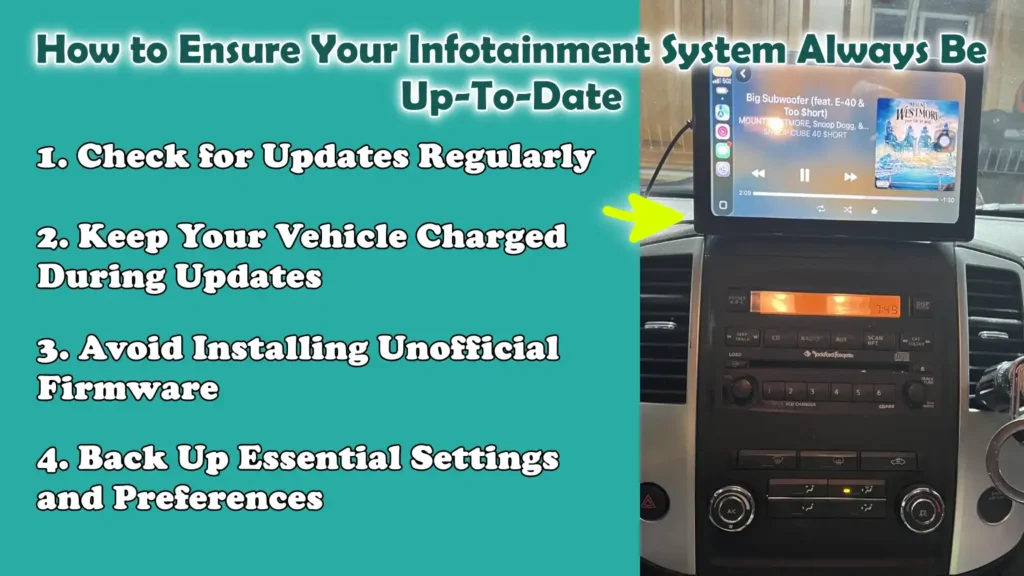
1. Check for Updates Regularly
Keeping your infotainment system updated is not a one-time task; checking for updates regularly ensures that your system remains reliable, secure and efficient.
Car manufacturers release software updates to fix bugs, improve system speed, update navigation maps and enhance compatibility with new smartphones and apps.
By checking for updates every few months, or whenever you notice performance issues, you can avoid problems such as slow response times, app crashes, or outdated features.
Many modern systems can automatically check for updates when connected to the internet, but checking manually ensures that you do not miss out on critical improvements that can make your driving experience smoother and safer.
2. Keep Your Vehicle Charged During Updates
Maintaining a stable power supply during updates is one of the most critical factors.
Infotainment updates can take a significant amount of time and if the system loses power in the middle of the installation, it can corrupt the software or cause the system to shut down completely.
Keeping the engine running, or ensuring that the battery is fully charged, guarantees a consistent power supply throughout the entire process.
In vehicles with weak or aging batteries, the system may shut down abruptly if the engine is off, thereby increasing the risk of an incomplete update.
A stable power source ensures that the update process is completed successfully without causing any damage to the system.
3. Avoid Installing Unofficial Firmware
To safeguard the security and performance of your infotainment system, it is essential to use only official software provided by the vehicle manufacturer or trusted sources.
Unofficial firmware or modified software may promise additional features, but they often carry serious risks such as: system instability, security vulnerabilities, or even total system failure.
These files are not vetted or approved by the manufacturer, meaning they may not be compatible with your vehicle’s hardware.
Installing such software can also void your warranty, making it difficult to obtain assistance in the event of a malfunction.
Using only official updates ensures that your system remains secure, stable and fully functional.
4. Back Up Essential Settings and Preferences
Before performing any update, it is always a good idea to back up your essential settings and preferences.
Infotainment systems often store valuable data, such as saved navigation routes, favorite radio stations, Bluetooth pairings and specific system configurations.
During an update, particularly a major one, this data can sometimes be lost or reset.
Having a backup allows you to quickly restore your preferred settings without having to manually re-enter everything yourself.
Even if your system does not support automatic backups, simply writing down your critical settings can save you time and make the post-update configuration process much easier and more convenient.
Read More:
- How to Fix Speedometer Not Working
- How to Replace a TPMS Sensor
- How to Reset TPMS Light
- How to Fix Traction Control Light
Conclusion – How to Update Car Infotainment System
Now, you have understand the power of small updates, as it literally makes a big difference as it turns a slow and frustrating system into a fast and reliable one during journey.
These systems control critical features such as navigation, connectivity, media and even certain safety functions; consequently, outdated software can lead to sluggish performance, system glitches, or connectivity interruptions, thereby impacting your entire driving experience.
By regularly checking for updates and utilizing appropriate methods such as: over-the-air updates, USB installations, or dealership assistance, you can ensure that your system remains reliable, secure and efficient.
A few simple precautions such as: maintaining a stable power supply, backing up your data and using only official software, as it can prevent most common issues and make the update process safe and stress-free.
A well-updated infotainment system not only enhances speed and functionality but also introduces new features, improves compatibility with modern devices and safeguards your data against potential risks.
Now, that’s it from this guide about How to Update Car Infotainment System, if you also have related questions please comment down below.
Frequently Asked Questions
FAQ 1: What is a car infotainment system and why does it need updates?
A car infotainment system comprises the central screen and software installed in your vehicle, which controls functions such as navigation, music, phone calls, apps and sometimes climate or vehicle settings. Much like a smartphone or a computer, it runs on software that can become outdated over time. Updates are crucial for fixing bugs, improving performance, adding new features, updating maps and ensuring that the system remains secure and functions correctly with newer devices. Without updates, the system may slow down, become unresponsive, or lose compatibility with new apps and phones.
FAQ 2: How do I know if my infotainment system needs an update?
There are several common signs indicating that your system requires an update. You might notice the screen freezing, apps crashing, delayed response to touch inputs, or difficulties connecting your phone via Bluetooth. Navigation maps may also appear outdated or provide incorrect directions. In some instances, the system itself may display a notification indicating that a software update is available. If you face any of these issues, it is advisable to check for updates by navigating to your system’s settings menu.
FAQ 3: Can I update my car’s infotainment system myself?
Yes, in many cases, you can update your infotainment system yourself without visiting a dealership. Most modern vehicles support “over-the-air” updates using Wi-Fi, or manual updates using a USB drive or SD card. This process is generally straightforward and can be completed by following the on-screen instructions. However, it is crucial to follow the correct steps, use official software and ensure that your vehicle maintains a continuous power supply throughout the entire update process. If you find this process difficult or face any major issues with your system, it is best to seek assistance from a dealership.
FAQ 4: How long does it take to update the infotainment system?
The time required for an update depends on the size of the software and the method you are using. Smaller updates may take approximately 10 to 20 minutes, while larger updates which include new features or map data, as it can take anywhere from 30 minutes to over an hour. If you are using Wi-Fi, the speed of your internet connection can also impact the total time. It is essential to remain patient and avoid interrupting the process, even if it appears to be taking longer than expected.
FAQ 5: Will updating my infotainment system delete my data?
In some cases particularly with major updates, your personal data, such as saved locations, Bluetooth connections and settings, may be reset or deleted. Therefore, it is always advisable to back up your important data before initiating an update. Once the update is complete, you may need to reconnect your phone and reconfigure your preferred settings. Spending a few minutes on preparation beforehand can help you avoid losing essential information.
FAQ 6: What should I do if the update fails or gets stuck?
If an update fails or appears to be stuck, the first step is to wait a little while; some updates may take longer than anticipated and may appear frozen even while they are actively processing. If there is no progress for an extended period, you may attempt to restart the system or the vehicle but do so only if it is safe to do so. You may need to redownload the update or try an alternative method, such as using a USB drive instead of Wi-Fi. If the issue persists, contacting the manufacturer or visiting a dealership remains the safest option.
FAQ 7: Why is my infotainment system not recognizing my USB drive?
This issue is typically caused by incorrect formatting, unsupported file types, or files being placed in the wrong location. Most infotainment systems require the USB drive to be formatted in a specific way, such as FAT32 or exFAT. The update files must also be placed without any modifications in the correct directory, typically the root folder. Using a low-quality or defective USB drive can also lead to problems. Trying a different USB drive or carefully reviewing the file setup often resolves this issue.
FAQ 8: Is it safe to update the infotainment system while the vehicle is turned off?
Generally, it is not advisable to update the system while the vehicle is completely turned off, as the system requires a continuous power supply throughout the entire process. If the power supply is interrupted during the update, it can corrupt the software and cause the system to stop functioning properly. Most experts recommend keeping the engine running or setting the ignition to a mode that ensures a continuous power supply to the system. This ensures that the update is completed safely and without any interruptions.
References:
[1] Secure over-the-air software updates in connected vehicles: A survey
https://www.sciencedirect.com/science/article/abs/pii/S1389128619314963
Hello Folks, Dean Shali here to help you out to solve the problems with your lovely vehicle, as i have lots of experience and knowledge about automotive industry as i woks directly with the customers and repair vehicles and i love to help the people to keep their cars safe and running smoothly.