
Written By: Dean Shali
Fact Checked By: Sabré Cook
Reviewed By: Tamara Warren
You’d surprise to know: how silly and basic things can fix Bluetooth connection issue forever.
Basically, Bluetooth technology allows drivers to make hands-free calls, stream music and literally connect their smartphone safely while on the road.
Plus, there’s studies from the organizations such as: NHTSA that shows that hands-free systems actually helps you to reduce the distraction compared to the manual phone use; that makes properly working Bluetooth connection is safety feature as well.
However, there are common issues that often comes with this amazing technology if not handled properly such as: paring failures, random disconnections, audio not playing despite being connected or device is not being detected at all.
So, these are the problems that can be solved by the simple quick fix things such as: fixing outdated software, fixing conflicting settings, fixing signal interference or fixing if there’s overloaded paired device lists as well.
And, in this guide you’ll learn exactly How to Fix Bluetooth Not Working in Car, so that you can quickly fix this issue and restore your stable connection and improve the experience of your journey.
Now, Let’s Understand About How Car Bluetooth Works?
Car Bluetooth is a short-range wireless technology that enables your smartphone and your car’s infotainment system to communicate with each other without the need for any cables.
When you enable Bluetooth on both your car and your phone, the two devices send out signals to locate one another.
Once they recognize each other, you complete the pairing process, which typically involves selecting the car’s name on your phone and confirming a specific code.
After pairing, the system establishes a trusted connection so that every time you start the car, your phone automatically reconnects.
Subsequently, the car’s infotainment system utilizes different Bluetooth profiles to handle specific tasks, such as making calls, playing music, or accessing contacts.
For instance, one profile manages hands-free calling, while another handles audio streaming.
This explains why calls sometimes work while music does not play; different functions rely on different components of the Bluetooth system.
Most modern cars can store multiple paired devices, but typically only one or two can be actively connected at any given time, which can sometimes lead to confusion or connection issues.
1. Software Glitches
Software glitches are one of the most common reasons why a car’s Bluetooth system stops working.
These glitches can stem from temporary bugs, memory errors, or outdated software present in either your phone or the car’s infotainment system.
For example, if your phone’s operating system has recently been updated, it may not immediately function correctly with an older car system.
Similarly, the car’s software may become sluggish or unresponsive over time, particularly if it has not been kept up to date.
Due to these minor errors, issues such as pairing failures, sudden connection drops, or a lack of audio output, even when the device appears to be connected, may occur.
In most cases, simple remedies such as: restarting the phone or resetting the car’s system, as it can resolve these glitches and restore the system to normal working order.
2. Incompatible Devices
Not all devices are fully compatible with every car’s Bluetooth system, particularly when there are significant disparities in technology versions.
Older cars may utilize earlier versions of Bluetooth, whereas modern smartphones feature more advanced versions equipped with additional capabilities.
Although Bluetooth is designed to be backward compatible, certain features such as: contact syncing or media controls, may not function correctly.
In some instances, a phone may connect successfully yet fail to perform specific tasks.
This can lead users to mistakenly believe that there is a malfunction within the system itself.
Compatibility issues involving specific phone brands or custom software versions are also common; therefore, it is essential to verify whether your car’s system supports your specific device.
3. Connection Limitations
Most car infotainment systems impose limits on the number of devices that can be paired, as well as the number of devices that can remain connected simultaneously.
While a system may be capable of storing five or more paired devices, it typically permits only one or two active connections at any given time.
If an excessive number of devices are stored within the system, it may struggle to determine which device to connect to, potentially resulting in pairing failures or sudden connection drops.
For instance, if multiple phones with active Bluetooth are present inside the vehicle, the system may attempt to connect to the wrong device or repeatedly switch between them.
Removing unused devices from the list often improves connection stability and reduces system confusion.
4. Signal Interference
Bluetooth operates over short distances, typically up to about 30 feet, using radio waves; however, its performance can be adversely affected by interference.
Other wireless devices such as: Wi-Fi routers, smartwatches, or numerous active Bluetooth devices in the vicinity, as it can interfere with the signal.
Physical obstructions such as: thick objects, metal surfaces, or even keeping your phone inside a bag or pocket, as it can also weaken the connection.
Interference can lead to issues such as audio dropouts, delayed responsiveness, or difficulty maintaining a stable connection.
Placing your phone closer to the infotainment system and minimizing the number of active wireless devices can help improve signal strength and overall performance.
What are the Important Initial Checks
Before attempting advanced fixes, it is essential to perform a few basic checks that can resolve many car Bluetooth issues.
Many connectivity problems are not caused by major malfunctions, but rather by simple settings or minor oversights that are easy to overlook.
These quick checks help ensure that both your phone and your car’s system are properly prepared to establish a connection.
Spending a few minutes verifying these basics saves time, eliminates confusion and often restores the connection without the need for complicated troubleshooting.
1. Check if Bluetooth is Enabled on Your Phone or Device
The first and most crucial step is to ensure that Bluetooth is enabled within your phone or device’s settings.
If Bluetooth is turned off, your car will not be able to detect your device at all.
In some cases, Bluetooth may appear to be “on,” yet it might not be actively searching for connections, specially if it has been recently toggled off and back on.
It is also helpful to open the Bluetooth settings screen to verify whether your car is listed as a “Saved Device.”
If it does not appear, your phone may not be set to “Discoverable” mode, which prevents the pairing process from initiating.
Ensuring that Bluetooth is fully enabled and active helps kickstart the connection process correctly.
2. Ensure Your Car Supports Your Device Model
Not every car’s Bluetooth system works seamlessly with every phone, particularly when there are discrepancies in technology versions or software design.
Older vehicles may not fully support newer smartphones and certain features such as: contact sharing or music controls, may not function as expected.
Consult your car’s manual or official support documentation to confirm compatibility with your specific device model.
Even if a connection is technically possible, limited compatibility may lead to certain issues, for instance, calls might function correctly while audio streaming does not.
Understanding compatibility helps you set realistic expectations and eliminates confusion regarding whether the problem lies with the device or the system.
3. Ensure the device is within range
Bluetooth operates over short distances, typically up to about 10 meters or 30 feet, but the connection is strongest when your phone is in close proximity to the car’s infotainment system.
If your device is too far away such as: outside the car or tucked away in a distant corner, the signal may weaken, or it may fail to connect altogether.
Even inside the car, placing your phone inside a closed bag, a pocket, or behind an object can diminish signal strength.
For the best connection, your phone should be placed in an open area, such as on the dashboard or the center console.
Maintaining a clear, close proximity ensures a stable and reliable connection.
4. Restart both the car’s infotainment system and your device
Restarting both your phone and the car’s infotainment system is the simplest and most effective method for resolving Bluetooth-related issues.
Over time, both systems may face minor software errors or temporary glitches that interfere with their proper operation.
Restarting clears up these minor issues and refreshes the system, allowing it to resume functioning correctly.
For your phone, a simple reboot resets the Bluetooth service and resolves any temporary glitches.
For a car, the infotainment system can be reset by turning off the engine, waiting for a short while and then restarting it.
This simple method often resolves issues such as pairing difficulties, dropped connections, or malfunctioning Bluetooth without requiring any further effort.
How to Fix Bluetooth Not Working in Car – Quick & Effective Method
When basic checks fail to resolve the issue, the next step is to follow a systematic troubleshooting process that focuses on the most common causes of Bluetooth failure.
One of the most effective methods is to re-pair the device, as this resets the connection between your phone and the car’s infotainment system.
Over time, saved connections can become unstable due to software updates, altered settings, or accumulated glitches.
Re-pairing allows both devices to start afresh and re-establish a clean, stable connection.
This process is simple, requires no technical expertise and often resolves issues such as connection failures, lack of audio output, or the device not being recognized.
1. How to Fix Bluetooth By Re-Pairing the Device
Re-pairing involves deleting the existing connection and creating a new one from scratch.
When a device is paired, both the phone and the car save connection data, including permissions and profiles for calls and media.
If this saved data becomes outdated or corrupted, the connection may appear active but will not function correctly.
By re-pairing, you clear out the old data and allow both systems to exchange fresh information, thereby improving compatibility and connection stability.
Remove Existing Pairing
The first step is to delete the existing pairing from both your phone and the car’s system.
This is crucial because if you remove it from only one side, incomplete data may remain on the other, potentially allowing the issues to persist.
On your phone, navigate to the Bluetooth settings, select your car’s name and then choose the ‘Forget’ or ‘Remove’ option.
On the car’s infotainment system, locate the list of paired devices and remove your phone from that list.
This ensures that both systems no longer recognize each other as previously connected devices, thereby allowing for the initiation of a completely fresh setup without any interference from old data.
Rediscover and Pair the Device
After removing the old pairing, toggle the Bluetooth on your phone off and then back on to refresh the system and subsequently initiate the new pairing process.
Ensure that your car’s Bluetooth is in ‘discoverable mode’ so that your phone can detect it.
When your car’s name appears on your phone, select it and confirm the pairing code displayed on both screens.
This step establishes a new, reliable connection and facilitates the mutual exchange of permissions between the devices for calls, contacts and media.
Carefully completing the pairing process ensures that all features function correctly, thereby helping to prevent issues such as audio playback failure or the failure of contact synchronization between connected devices.
Check for Conflicts Among Multiple Devices
Many Bluetooth-related issues arise because multiple devices are attempting to connect to the car simultaneously.
While most infotainment systems can store multiple paired devices, they typically maintain an active connection with only one or two devices at a time.
If Bluetooth is enabled on several phones present inside the car, the system may attempt to connect to the wrong device or repeatedly switch between them.
This can result in connection failures, sudden disconnections, or audio playing through a different phone.
To avoid this, disable Bluetooth on other nearby devices or remove unused devices from the car’s memory.
Keeping only the essential devices connected helps maintain a stable and consistent Bluetooth connection.
2. How to Fix Bluetooth By Updating Software or Firmware
The most effective method for resolving Bluetooth-related issues in a car is to update the software, as both the infotainment system and your phone rely on software to function correctly.
Bluetooth operates through a set of specific coded instructions.
These instructions determine how devices discover one another, how they pair and how they exchange data such as: calls or music.
Over time, these instructions can become outdated, or their synchronization between devices may falter, particularly when newer phones attempt to connect with older car systems.
The purpose of software updates is to fix known bugs, enhance performance and provide improved support for newer devices.
If your Bluetooth was previously working correctly but has suddenly stopped functioning, the primary culprit is often outdated software; updating both systems will frequently resolve this issue.
Update the Car’s Infotainment System Firmware
A car’s infotainment system runs on firmware, a type of embedded software that manages features such as Bluetooth, navigation and audio.
Car manufacturers periodically release firmware updates to resolve connectivity issues, boost system speed and ensure better compatibility with newer smartphones.
If your car’s firmware is outdated, you may face problems such as connection failures, issues with device recognition, or improper audio playback.
To update the firmware, you typically need to download the latest version from the car manufacturer’s official website and then install it, either via a USB drive or an Over-the-Air (OTA) update, depending on your specific vehicle model.
Keeping your infotainment system’s firmware consistently updated ensures that it functions correctly even with modern devices and it also significantly reduces the likelihood of recurring Bluetooth-related issues.
Update Your Phone or Device Software
Your phone plays a crucial role in Bluetooth connectivity.
For optimal performance, it is essential that your phone’s operating system remains up to date.
Phone manufacturers periodically release software updates.
These updates fix bugs, enhance Bluetooth stability and facilitate better compatibility with various car systems.
If your phone is running on an outdated software version, it may fail to connect properly with the car.
Consequently, you may face issues such as pairing difficulties, frequent connection dropouts, or the inability to utilize features like contact synchronization.
Updating your phone is typically a straightforward process that can be performed via the ‘Settings’ menu.
Once updated, the phone utilizes improved Bluetooth protocols, thereby facilitating a more stable and reliable connection with the car.
Staying Updated is Essential for Maintaining Compatibility
Bluetooth technology is constantly evolving; therefore, it is vital to keep your devices updated.
For the car and phone to function correctly, they must remain synchronized with one another.
Each update often includes solutions for compatibility issues frequently facing across different brands and models.
Without updates, even minor discrepancies in software versions can disrupt the connection or limit the functionality of certain features.
For instance, a newer phone may utilize advanced Bluetooth capabilities that an older car system cannot fully interpret until it has been updated.
Regular updates enable both devices to communicate using a shared standard, thereby improving connection speeds, minimizing glitches and ensuring that all features function as intended.
Keeping your system updated is a simple yet effective way to prevent Bluetooth-related issues and maintain a smooth, reliable driving experience.
3. How to Fix Bluetooth By Resetting Bluetooth Settings
Resetting Bluetooth settings is a highly effective method for resolving connection-related issues, as it clears out accumulated data that may be causing malfunctions.
When you use Bluetooth regularly, both your phone and your car store specific information such as: paired devices, permissions and connection history.
Over time, this accumulated data can become outdated or corrupted, particularly following software updates or repeated connection attempts.
This can lead to issues where devices appear to be connected but fail to function; pairing attempts fail; or the connection drops unexpectedly.
Resetting Bluetooth eliminates these underlying issues, allowing both systems to start functioning with a clean slate.
Often, taking this step restores a stable and reliable connection without the need for complex repairs.
Resetting the Car’s Bluetooth System
The car’s Bluetooth system is an integral part of its infotainment unit and it stores information regarding all devices that have previously connected to it.
If this data becomes excessive or corrupted, the system may struggle to establish proper connections.
To reset the car’s Bluetooth system, you typically need to navigate to the infotainment settings and remove all paired devices, or utilize a specific “Bluetooth Reset” option if available.
In some vehicles, simply turning off the car, waiting a few minutes and then restarting it can also help refresh the system.
This process clears all saved connections and resolves minor technical glitches.
Consequently, the system operates like new and is ready to pair again, free from any interference caused by previous connections.
Resetting Your Phone’s Bluetooth Settings
Your phone stores Bluetooth-related information such as: paired devices, connection preferences and cache files, locally.
These files help expedite the connection process in the future.
However, if this data becomes corrupted, it can interfere with proper communication between your phone and your car.
Resetting your phone’s Bluetooth settings removes all saved devices and clears out these accumulated files.
On many devices, this can be accomplished via ‘System Settings,’ where you can select the option to reset network or Bluetooth settings.
After resetting, you will need to re-pair your device.
However, this fresh start often resolves issues such as pairing failures, lack of audio, or unstable connections, as it eliminates underlying software glitches.
What is the Difference Between a Full System Reset and a Bluetooth-Only Reset?
Understanding the distinction between a full system reset and a Bluetooth-only reset is crucial for choosing the appropriate solution.
The primary objective of a Bluetooth reset is simply to clear Bluetooth-specific data such as: paired devices and connection settings.
Often, this single step is sufficient to resolve most connection-related issues.
On the other hand, a full system reset restores the entire infotainment system or phone to its original factory state.
This means that all settings, applications and personal data may be erased.
While a full reset can resolve deeper software-related problems, it should only be performed if simpler methods, such as a Bluetooth reset, fail to work.
In most cases, starting with a Bluetooth reset is a safer, faster and more effective approach for resolving common connection issues.
4. How to Fix Bluetooth By Checking for Interference
Bluetooth utilizes short-range radio signals to establish a connection between your phone and your car’s infotainment system; however, these signals can be susceptible to interference caused by other devices or physical obstructions.
Although Bluetooth is designed to operate reliably, it functions within a shared frequency band that is also utilized by various other wireless technologies.
When an excessive number of signals are active within the same vicinity, the connection may become unstable, leading to issues such as audio interruptions, delayed response times, or sudden connection dropouts.
Understanding and mitigating interference is crucial, as even a fully functional phone and car system may fail to connect properly if there are obstructions in the signal’s path.
Remove or Turn Off Other Nearby Bluetooth Devices
The most common cause of interference is the presence of multiple active Bluetooth devices in the vicinity of your car.
Devices such as smartwatches, wireless earphones, other smartphones, or even laptops can emit signals that clash with those of your car’s system.
When multiple devices attempt to connect, or maintain a connection, simultaneously, the car’s system may become confused regarding which device to prioritize; alternatively, the signals may collide with one another, resulting in signal degradation.
This can lead to failed pairing attempts or an unstable connection.
Disabling Bluetooth on devices that are not currently in use, or moving them away from the car, as it can help minimize this interference, thereby allowing your primary device to connect more easily and consistently.
Avoid Obstructions Between the Phone and the Car System
Physical objects can also impact the efficiency with which Bluetooth signals travel between your phone and your car’s system.
Bluetooth signals perform optimally when there are no obstructions situated between the two devices.
Objects such as thick bags, metal surfaces, or certain interior parts of a car can weaken or block signals.
For instance, placing your phone inside a closed bag, deep within a pocket, or under a seat can diminish signal strength and lead to connectivity issues.
Positioning your phone in an open and visible location such as: on the dashboard or center console, allows the signal to reach it more freely.
Minimizing obstructions helps maintain a strong connection, improves audio quality and prevents interruptions during calls or music playback.
5. How to Fix Bluetooth By Advanced Solutions
When basic troubleshooting steps fail to resolve a Bluetooth issue, advanced solutions can help address deeper underlying problems that are not immediately apparent.
These issues typically stem from hidden system data, device-specific behaviors, or rare hardware malfunctions.
Although less common, these problems can cause persistent annoyances such as: frequent connection drops, repeated pairing failures, or audio glitches, that cannot be fixed with a simple reset.
Carefully understanding and applying these advanced fixes can help restore proper Bluetooth functionality when standard troubleshooting methods prove insufficient.
Clear the Bluetooth Cache on Android Devices
Android devices store temporary Bluetooth data, known as the “cache”, to facilitate faster and easier connections.
This cache contains details regarding past connections, device information and system processes that assist in managing Bluetooth activity.
Over time, this stored data can become outdated or corrupted, particularly following system updates or frequent changes to connected devices.
When this occurs, it can lead to issues such as devices failing to connect, incorrect device names appearing, or unstable connections.
Clearing the Bluetooth cache removes this temporary data, forcing the system to rebuild it from scratch.
This process causes no harm to your phone; however, it may delete saved Bluetooth preferences, meaning you might need to re-pair your car.
In many cases, clearing the cache resolves issues that a simple system reset cannot fix.
Check for Car Model-Specific Nuances
Different car manufacturers design their infotainment systems in unique ways and certain models may have specific requirements or known issues regarding Bluetooth connectivity.
For instance, some cars may require the ignition to be set to a specific mode during the pairing process, while others may impose restrictions on how contacts or media are shared.
Some systems may behave differently depending on the phone’s brand or software version.
These model-specific behaviors, often referred to as “quirks”, as it can confuse users because the connection process may not adhere to a standard protocol.
Consulting your car’s owner’s manual or official support documentation can help you understand these specific steps and avoid errors.
Being aware of these details ensures that you follow the correct procedure for your specific vehicle, which can make a significant difference in successfully establishing a connection.
Check for Hardware-Related Issues in the Car or Phone
In rare cases, Bluetooth connectivity problems may stem from hardware malfunctions rather than software glitches or incorrect settings.
This could involve a faulty Bluetooth module within the car’s infotainment system or a defect within the phone’s internal components.
Symptoms of hardware-related issues include: Bluetooth failing to turn on at all, the device not being detected even after a reset, or the same persistent issue occurring across multiple devices.
For example, if your phone is unable to connect to any Bluetooth device, the problem likely lies with the phone itself.
Conversely, if multiple phones are unable to connect to the car, the issue may reside within the car’s system.
Hardware-related problems typically require professional inspection or repair and in some instances, the replacement of faulty components may be necessary.
Identifying this possibility early on can save you time and help you determine when to seek expert assistance.
Common Error Messages in Bluetooth and How to Fix Them
When a car’s Bluetooth stops working, the system often displays specific error messages.
These messages help you pinpoint exactly where the malfunction is occurring.
Although these messages may seem a bit confusing at first, they actually point to very common and easily resolvable issues.
Each message corresponds to a different stage of the connection process such as: device detection, pairing, or audio transfer.
By understanding the meaning of each message and applying the appropriate troubleshooting steps, you can resolve the problem quickly and easily, without any guesswork.
Most of these issues stem from temporary glitches in settings, permissions, or software and can be resolved using a few simple methods.
As well as, there’s modern studies that shows that using hands-free Bluetooth system literally reduces crash risk compared to handheld the phone for any use, also according to the research from the Virginia Tech Transportation Institute, when you remove manual interaction with a phone that actually helps the drivers to maintain the better control of their vehicle, this is why you need a properly functional Bluetooth system, as it is essential otherwise if there’s any failure may push the drivers to use their phones directly with hands, that increase the chance of accidents during drive.[¹]
1. Device Not Found
The “Device Not Found” message appears when your car fails to detect your phone during the scanning process.
This typically happens when Bluetooth is turned off, the phone is not in ‘Discoverable Mode,’ or the device is outside the car’s Bluetooth range.
In some cases, the phone may already be connected to another device, rendering it invisible to the car’s system.
To fix this, first ensure that your phone’s Bluetooth is fully enabled and active; additionally, keep the Bluetooth settings screen open to ensure the device remains continuously ‘discoverable.
‘ Move your phone closer to the car’s infotainment system and turn off Bluetooth on any nearby devices that might be interfering with the connection.
Restarting both your phone and the car’s infotainment system can also refresh the connection, allowing both devices to accurately detect one another.
2. Connection Failed
The “Connection Failed” message typically appears when both devices successfully detect each other but fail to complete the pairing process.
This issue may stem from incorrect pairing steps, outdated software, or residual connection-related glitches accumulated in the system from previous attempts.
Occasionally, devices may store incomplete or conflicting data, preventing a proper connection from being established.
To resolve this, delete the existing pairing from both the phone and the car’s system and restart the pairing process from scratch.
Ensure that you correctly verify the pairing code on both devices.
Updating the software on your phone and the car’s infotainment system can also improve compatibility between the two, thereby eliminating recurring connection issues.
Performing a fresh, clean pairing often resolves this problem completely.
3. Paired, but No Audio
The “Paired, but No Audio” issue occurs when the phone successfully connects to the car, yet no sound is emitted from the car’s speakers.
This typically indicates that the connection for calls or media has not been set up correctly, even though the devices are paired.
Bluetooth utilizes separate profiles for audio streaming and phone calls; sometimes, one profile functions correctly while the other does not.
To fix this, check your phone’s Bluetooth settings and ensure that “Media Audio” is enabled for the car connection.
Additionally, verify that the car’s audio system is set to Bluetooth mode, rather than to another source such as the radio or USB.
Restarting both devices and reconnecting them can help reset the audio connection.
In some instances, if the audio is simply muted or set to a very low level, adjusting the volume levels on both the phone and the car may also resolve the issue.
Easy Tips for Avoiding Bluetooth Issues
Fixing Bluetooth problems is often easier than preventing them from occurring in the first place, as most connection issues develop gradually over time, often due to factors such as outdated software, an excessively long list of paired devices, or minor system glitches.
Bluetooth is designed to operate autonomously; however, it requires proper maintenance to remain reliable.
By adopting a few simple habits, you can keep the connection between your phone and your car stable, minimize the likelihood of sudden malfunctions and enjoy uninterrupted performance every time you drive.
These preventive measures are easy to implement and can spare you the hassle of repeatedly troubleshooting issues in the future.
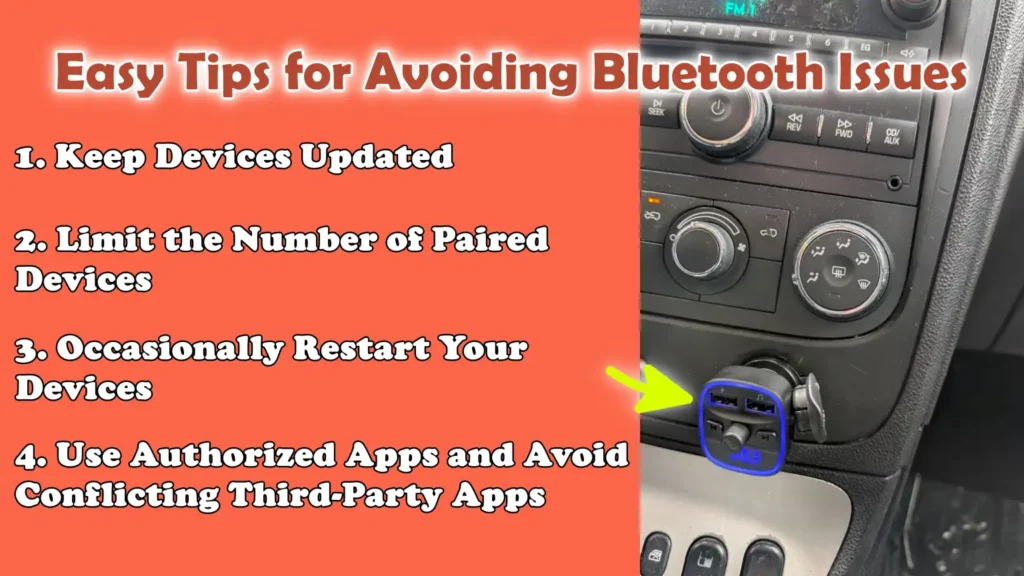
1. Keep Devices Updated
Keeping both your phone and your car’s infotainment system updated is the most crucial step in avoiding Bluetooth problems.
Software updates are released regularly to fix bugs, improve connection stability and ensure compatibility with newer devices.
When a phone or car system runs on outdated software, it may struggle to communicate effectively, leading to pairing difficulties or unstable connections.
Updates also enhance how Bluetooth handles audio streaming, phone calls and data transfers.
Periodically checking for and installing updates ensures that both devices are utilizing the latest improvements, thereby helping to maintain a smooth and reliable connection.
2. Limit the Number of Paired Devices
Most car Bluetooth systems are capable of storing multiple paired devices; however, having an excessive number of saved connections can lead to confusion and slow down the connection process.
When a system stores multiple devices, it may inadvertently attempt to connect to the wrong device or suddenly switch between them.
This can lead to connection failures or interruptions during use.
Keeping only essential devices in your paired list helps the system focus on the correct device and improves connection speed.
Removing old or unused devices from both your phone and car system keeps the Bluetooth memory clear and minimizes the risk of conflicts.
3. Occasionally Restart Your Devices
Periodically restarting your phone and car system helps prevent minor software glitches from escalating.
Like any electronic system, Bluetooth can develop temporary glitches after prolonged, continuous use.
These glitches may not be immediately apparent, but they can eventually lead to connection-related issues.
Restarting clears temporary memory, refreshes system processes and resets Bluetooth functionality.
Doing this occasionally helps maintain smooth performance and guards against unexpected issues, such as sudden connection drops or Bluetooth malfunctions.
4. Use Authorized Apps and Avoid Conflicting Third-Party Apps
Using reliable and authorized apps is crucial, as certain third-party Bluetooth or system management apps can interfere with the normal operation of Bluetooth.
These apps may attempt to control connections, manage audio output, or alter system settings, potentially leading to unstable performance or connection failures.
Phones are designed to handle Bluetooth functionality through their built-in system software; this software has been thoroughly tested for compatibility and stability.
Avoiding useless apps that alter the way Bluetooth functions ensures that your connection remains uninterrupted and reliable.
Relying solely on official system settings and trusted applications minimizes the potential for conflicts and guarantees that your Bluetooth continues to operate exactly as expected.
Read More:
- How to Update Car Infotainment System
- How to Fix Speedometer Not Working
- How to Replace a TPMS Sensor
When You Should Go to the Professional Mechanic
While most car Bluetooth issues can be resolved using simple methods, there are situations where the problem is severe enough that standard troubleshooting cannot fix it; in such cases, seeking the assistance of an expert becomes essential.
Modern infotainment systems are highly complex electronic units, representing an intricate blend of software, hardware and the vehicle’s internal systems.
When a major malfunction occurs such as: internal hardware failure or a system-level glitch, it is often impossible to repair it safely without the proper tools and technical expertise.
Knowing when to stop attempting standard fixes and when to seek professional help can save you time, prevent further damage and ensure that the issue is resolved correctly.
1. Persistent Connection Failures
If your Bluetooth connection repeatedly fails, even after you have exhausted all standard troubleshooting steps, such as restarting the device, re-pairing, updating software and resetting settings, it may be a sign of a more significant internal issue.
Persistent connection failures often point to an underlying problem that cannot be resolved through standard user-level methods.
For instance, there may be an internal software glitch within the system that requires specialized diagnostic testing or reprogramming.
If multiple different phones are unable to connect to the same vehicle, there is a strong probability that the issue lies not with your device, but with the vehicle’s infotainment system itself.
In such cases, having the vehicle inspected by a professional is crucial to accurately diagnose the root cause of the problem and resolve it.
2. Infotainment System Hardware Issues
In some instances, Bluetooth-related problems stem from malfunctions within the internal hardware components of the vehicle’s infotainment system.
This may involve a malfunction of the Bluetooth module, damage to internal wiring, or the failure of a specific electronic component.
Symptoms of hardware-related issues include the Bluetooth failing to turn on at all, the system freezing repeatedly, or the vehicle consistently failing to recognize any connected devices.
Unlike software-related issues, hardware malfunctions cannot be resolved simply by adjusting settings or applying updates; they require the repair or replacement of physical components.
As infotainment systems are deeply integrated into a vehicle’s electronic architecture, attempting to fix hardware issues without proper training can lead to even more complex problems; therefore, seeking professional assistance is the safest course of action.
3. Contact a Dealership or Certified Car Technician
When professional assistance is required, it is best to contact an authorized dealership or a certified car technician who possesses in-depth knowledge and experience regarding your vehicle’s specific systems.
These professionals are equipped with specialized diagnostic tools and proprietary software that enable them to accurately pinpoint the root cause of the problem and resolve it effectively.
They can perform firmware updates, repair or replace faulty components and ensure that the system operates in strict accordance with the manufacturer’s specifications.
Enlisting the help of an expert not only ensures a reliable solution to the problem but also safeguards the integrity and performance of your vehicle’s electronic systems.
Conclusion – How to Fix Bluetooth Not Working in Car
So, earlier it can look like a big problem, but now you can easily fix almost any Bluetooth issues with these easy to follow method.
Problems such as pairing difficulties, sudden connection drops, or a lack of audio output are often linked to basic factors such as: outdated software, incorrect settings, an excessive number of connected devices, or signal interference.
By understanding how the system operates and correctly applying suggested troubleshooting methods, you can accurately diagnose and resolve the specific issue without resorting to guesswork.
Starting with simple checks such as: re-pairing the device, updating software and resetting settings, and then progressing to more complex methods ensures that you resolve the problem in the most effective and secure manner possible.
It is also important to remember that Bluetooth is not merely a convenience; it plays a crucial role in safe driving by facilitating hands-free communication and providing easy access to essential vehicle functions.
Keeping your phone and car systems updated, maintaining a clean list of paired devices and avoiding unnecessary sources of interference can prevent most issues before they even arise.
Now, if you still have confusion related to this guide on How to Fix Bluetooth Not Working in Car, just comment down below.
Frequently Asked Questions
FAQ 1: What should I do if my car’s Bluetooth isn’t connecting to my phone?
If your car’s Bluetooth isn’t connecting, the first thing you should check is whether Bluetooth is enabled on both your phone and the car’s system. Next, ensure that your phone is set to ‘discoverable’ mode and is in close proximity to the car. If it still fails to connect, remove the existing pairing from both devices and attempt to pair them again from scratch. Restarting both your phone and the car’s system can also resolve minor glitches. In many cases, connectivity issues stem from minor causes such as: outdated software or errors in saved connections, so updating your phone and clearing old device pairings can help re-establish a proper connection.
FAQ 2: Why does my car’s Bluetooth keep disconnecting automatically?
Bluetooth connections can drop automatically due to signal interference, software glitches, or an excessive number of connected devices. If multiple phones or Bluetooth devices are active inside the car, the system may struggle to maintain a stable connection. Weak signals caused by distance or physical obstructions can also disrupt the connection. Another common culprit is outdated software on either the phone or the car’s system. To resolve this, keep your phone close to the infotainment system, switch off other nearby Bluetooth devices and ensure that both systems are running the latest software updates. Restarting the devices can also help improve connection stability.
FAQ 3: My phone is paired, but why isn’t music playing in the car?
If your phone is successfully paired but no music is playing, this typically indicates that the audio settings have not been configured correctly. Bluetooth connections utilize separate functions for calls and media; Therefore, it is possible for calls to function even if music is not playing. You should check your phone’s Bluetooth settings and ensure that ‘Media Audio’ is enabled for your car. Additionally, verify that your car’s audio system is set to Bluetooth mode rather than the radio or another source. Sometimes, the issue may be quite minor such as: the volume being too low or the audio being muted on either your phone or your car’s system.
FAQ 4: How do I reset the Bluetooth in my car?
To reset the Bluetooth in your car, you typically need to access the infotainment system’s settings and remove all paired devices. This clears the saved connection data, allowing you to start fresh. In some cars, there is a specific option to reset Bluetooth or restore the system to its ‘factory settings’ (initial configuration). After resetting, you will need to re-pair your phone. This process helps resolve issues caused by corrupted data or an excessive number of saved devices and it often improves connection performance.
FAQ 5: Can outdated software cause Bluetooth issues in cars?
Yes, outdated software is one of the most common causes of Bluetooth-related issues. Both your phone and your car’s infotainment system rely on software to communicate effectively. When the software on either device becomes outdated, they may fail to interact properly, leading to pairing failures, dropped connections, or certain features not functioning correctly. Software updates often include bug fixes and improvements that make Bluetooth connectivity more stable and compatible. Keeping both systems updated is a simple yet essential step in preventing and resolving connection-related issues.
FAQ 6: Why is my car unable to detect my phone at all?
If your car cannot detect your phone, the issue is typically that the phone is not in discoverable mode, Bluetooth is turned off, or the devices are too far apart. Sometimes, the phone may already be connected to another device, preventing it from appearing in search results. Interference from other wireless devices can also hinder detection. To resolve this, try turning Bluetooth off and then back on, place the phone close to the car’s system and ensure that no other devices are causing interference. Restarting both devices can also help refresh the connection process.
FAQ 7: How many devices can be connected to a car’s Bluetooth system simultaneously?
Most car Bluetooth systems can store multiple paired devices, but they typically allow only one or two active connections at a time. If you attempt to connect too many devices simultaneously, the system may become confused and fail to establish a proper connection. This can lead to issues such as connecting to the wrong device or sudden, unwanted switching between devices. To ensure a stable connection, it is a good idea to remove unused devices from the system and keep only the essential ones.
References:
[1] Virginia Tech, Safe to use hands-free devices in the car? Yes, suggests new research
https://www.sciencedaily.com/releases/2019/02/190207173255.htm
Hello Folks, Dean Shali here to help you out to solve the problems with your lovely vehicle, as i have lots of experience and knowledge about automotive industry as i woks directly with the customers and repair vehicles and i love to help the people to keep their cars safe and running smoothly.